Dashboard setup walkthrough
Minimal-input store setup: automatic discovery and initialization, realistic console guides, verification gates, and stable links for coding agents.
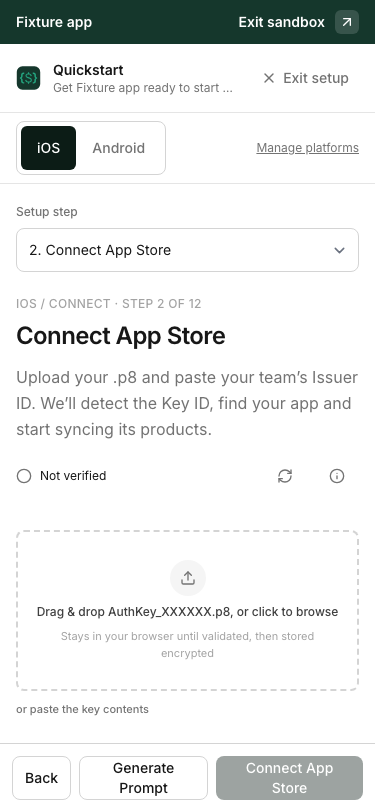
Choose your platform when creating an app. iOS, Mac App Store and Android follow the native store walkthrough below. Web, direct macOS, Chrome and Stripe-only apps open Web and Stripe instead: connect your own provider, import prices, map customer access and generate the matching MCP prompt. Stripe only skips browser sessions, SDK installation and all native store credentials.
Quickstart guides one store at a time. Open your app → Quickstart, then select iOS · App Store or Android · Google Play. Only stores selected when the app was created are offered. After you choose a path, it stays locked through final review; a dual-store app offers the other path from that final step.
The title and Exit setup are in the top header. Back, Generate Prompt, and the current action stay at the bottom while the step content scrolls. Only information that cannot be detected is requested. Related instructions share one task: credentials together, Play permissions together, and configure/test notifications together. Use the desktop rail or mobile Setup step menu to jump directly.
Playing a guide or choosing Review later does not verify a console action. Next runs credential validation where stated; simply visiting a page is not evidence. Connections, catalogs, notification delivery and purchases are checked against server evidence. A successful notification test is not a successful purchase test.
The anchored footer shows Input checked, Verified, or Not verified beside refresh and an info icon explaining the evidence. Refresh shows Checking… while status loads. On wide screens, task details sit on the left and the follow-along guide fills the right; they stack on small screens. Local format checks do not prove store access. Catalog, access mapping, campaigns and Sandbox notifications require evidence to advance with Next. Review later leaves them pending; it never marks them complete. SDK installation needs a build/run check; app-wide activity is not enough. For dual-store apps, inspect each store’s purchase and outcome separately.
On wider screens, inputs and uploads sit beside a console guide; on mobile, the guide follows the input. Each selected chapter automatically replays its cursor movements, clicks, and screen transitions. Use Pause, Resume, or Replay illustration at any time. Selecting the preview opens a full-screen walkthrough with zoom controls. Close it with the close button or Escape to return to the same input. Animation never submits a form, verifies a step, or advances setup. Reduced-motion settings show numbered callouts instead. About this illustration explains the sample data used in the example console.
Screenshots on this page are captures of the running CashSDK UI with isolated test
data, not live customer accounts. Fixture app, com.fixture.android, and
orchard-demo-123 are examples. In your dashboard, illustrations use your actual app
name, package name, uploaded key’s project ID and service-account email, and the API’s
notification URL or topic when available. Surrounding console rows, accounts, and
Apple IDs use fictional example data to preserve the real screen layout. Copy IDs
from your own console. Illustrations are not live views of your external consoles.
Before starting#
CashSDK reads Key IDs from original Apple filenames and project/email from Google JSON keys. Connecting Apple discovers the numeric app ID when the bundle ID matches. Existing Android package names are reused, never inferred from an iOS bundle ID. Missing or renamed-file identifiers have manual fallbacks; detected values do not require confirmation. Product import and Google notification-topic provisioning run automatically on connection and successful revalidation. Store errors remain retryable; initialization is not proof of notification delivery or purchase success.
The normal Apple path skips the optional In-App Purchase key. Add it from the notifications task if you want API-triggered notification tests. Store-side credential creation, permission approval, notification settings, product/access choices, and a real test purchase still require your involvement. CashSDK does not choose paid products, grant itself additional access, or publish a release automatically.
- Have permission to manage your app in the relevant store console.
- Apple: use a team App Store Connect API key with App Manager access. The optional In-App Purchase key is a separate key created by an Account Holder or Admin.
- Mac: a Mac build that shares the iOS bundle ID needs no extra steps beyond ticking macOS. A Mac app with its own App Store Connect record uses the same Apple key; set its Mac bundle ID and Mac Apple App ID, and paste the same notification URL into the Mac record. See macOS / Catalyst.
- Google: you need permission to enable the Android Publisher API, create a service account/key, and grant that account access in Play Console. The service account does not need Cloud Owner or Editor. If organization policy blocks JSON keys, ask your administrator for an approved solution; do not disable policy broadly.
- Never paste private keys into a coding-agent conversation, repository, mobile build, screenshot, or support ticket. Upload only in the dashboard’s credential steps.
Draft credentials stay in browser memory while you use Back/Next within the selected path. They are sent only when you validate the connection and are cleared after a successful save. Reloading or leaving Quickstart discards unsaved keys; select the file again. CashSDK does not return stored private key contents to the browser.
Android path#
The exact path prefix is:
https://app.cashsdk.com/{workspace-slug}/apps/{app-id}/quickstart?platform=android&step={step-id}
Replace the braces with your own identifiers. Each row is one task page.
| Step ID | What to do |
|---|---|
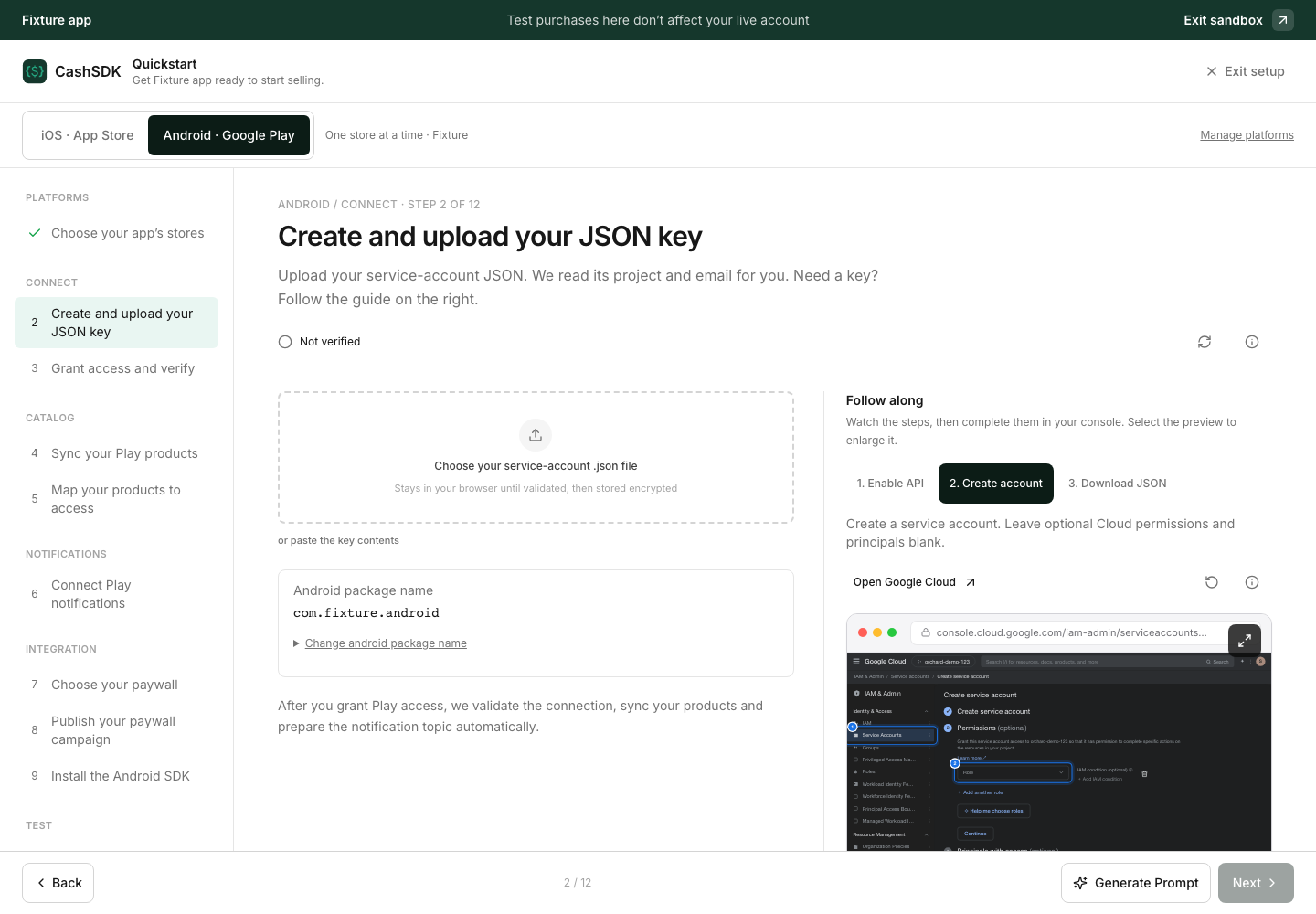
play | Opens play-upload. No project-ID question: it is read from your JSON. |
play-upload | Enable Google Play Android Developer API (androidpublisher.googleapis.com). Under IAM & Admin → Service Accounts, create an account; leave optional Cloud permissions and principals empty. Open Keys → Add key → Create new key → JSON. Download and select that file on this same page. CashSDK checks its structure and reads project/email locally; it is not uploaded yet. |
play-package | Opens play-upload. Existing package names are reused, with a collapsed correction field. Enter a package name only when missing; do not substitute an iOS bundle ID. |
play-validate | Users and permissions → Invite new users (or open the existing user). Use the displayed service-account email. On the App permissions tab (not Account permissions), Add app and choose the app. Tick View app information (read-only) under App access (required: Apply stays disabled without it; View app quality information ticks itself), then View financial data and Manage orders and subscriptions, and click Apply. Finish with Invite user → Send invite, or Save changes for an existing user. Verify Google access uploads and checks the key; existing connections use the saved key. Successful validation starts catalog sync and notification provisioning. Errors stay on this page. Read probes verify catalog/financial access, not order mutations; test a purchase too. |
play-catalog | Review automatically imported products. Create products and activate base plans in Play Console only if needed. Manual sync is available for an immediate refresh. Sync does not publish products or approve an app. |
access | Map access products to their intended entitlements in Products. Consumables credit a balance. Mark a product as sold without access only intentionally. |
play-rtdn | Monetize → Monetization setup → Real-time developer notifications. Paste the exact CashSDK topic and Save. On this same page, start watching, then click Send test notification in Play Console. Wait for actual receipt. |
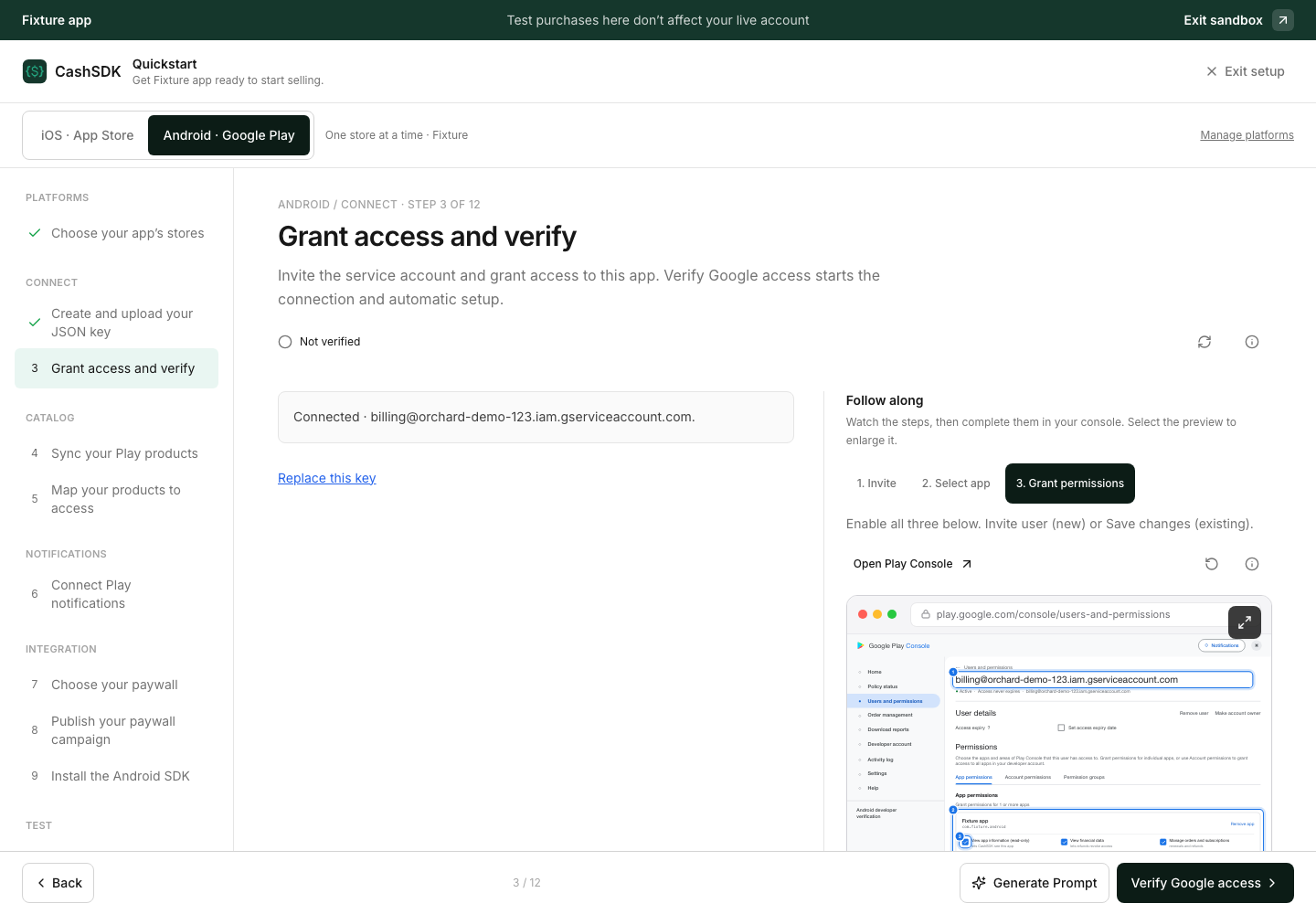
The app-scoped financial permission is View financial data. The longer View financial data, orders, and cancellation survey responses belongs to Account permissions. You do not need to link a Google Cloud project through the retired Setup → API access workflow. See Google’s API setup instructions and user-permission reference.
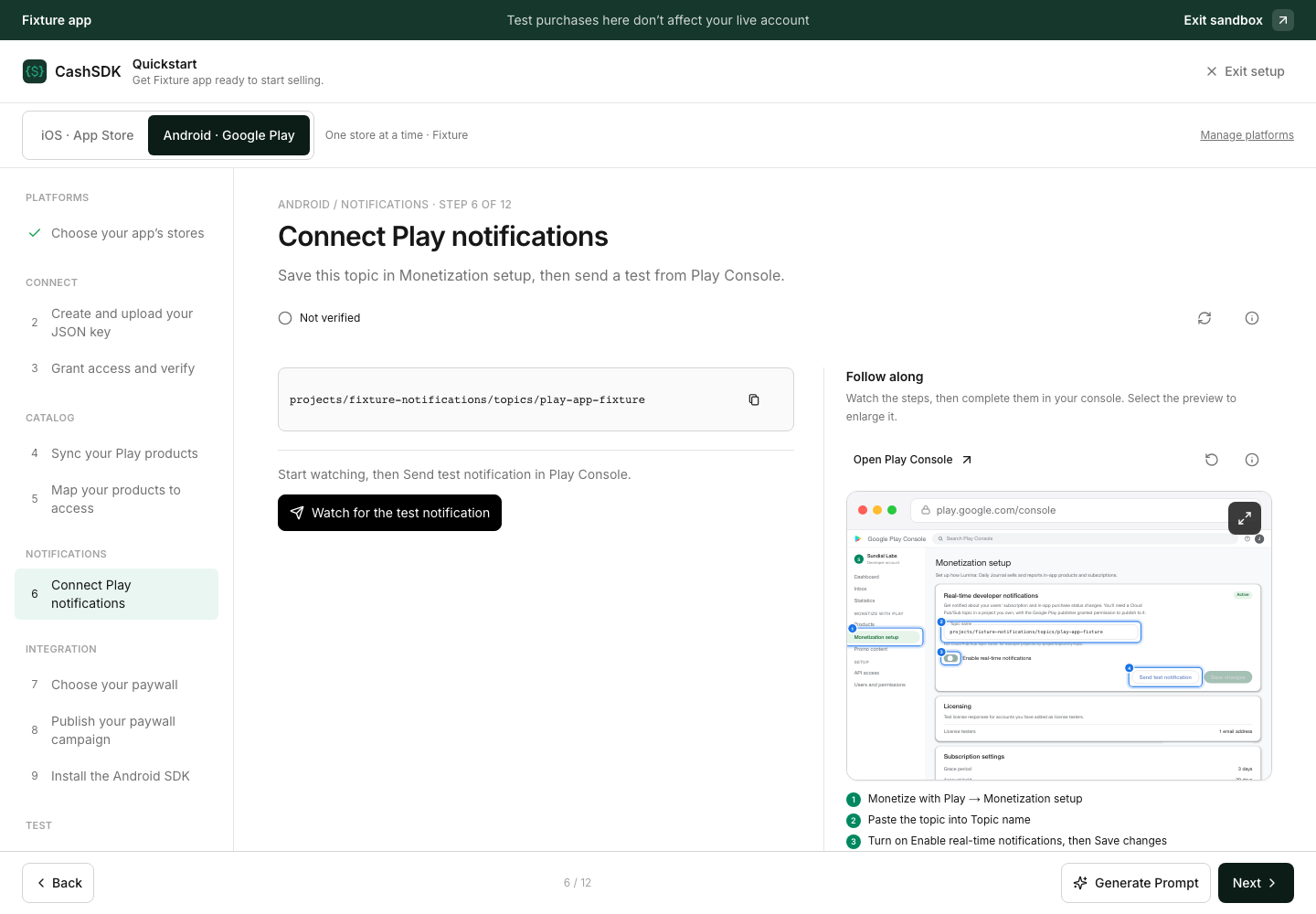
Use the topic returned for this CashSDK app. It may belong to CashSDK’s notification
project rather than the project that owns your JSON key. If the dashboard reports no
configured topic, an API administrator must configure PLAY_PUBSUB_PROJECT (per-app
topics) or PLAY_RTDN_TOPIC. Do not invent a topic or continue expecting a test to arrive.
iOS path#
https://app.cashsdk.com/{workspace-slug}/apps/{app-id}/quickstart?platform=ios&step={step-id}
| Step ID | What to do |
|---|---|
asc | Users and Access → Integrations → App Store Connect API → Team Keys. Generate an App Manager key, download its .p8 once, and upload it. Paste the Issuer ID on the same page. The original AuthKey_XXXXXXXXXX.p8 filename supplies the Key ID; only renamed or pasted keys need a manual ID. Connect App Store saves and verifies, discovers the app ID, and starts product sync. |
asc-issuer | Opens asc, with the Issuer ID guide selected. |
asc-key | Opens asc. A detected Key ID has a collapsed correction field, not a required confirmation screen. |
asc-iap | Optional, skipped on the main connection path: generate an In-App Purchase key and upload SubscriptionKey_XXXXXXXXXX.p8. Its ID is detected, with a manual fallback. Save optional key saves it to the existing Apple connection; Skip optional key returns to notifications. |
asc-iap-id | Opens asc-iap; no separate confirmation task. |
asc-app | Opens asc-catalog. Enter the numeric Apple ID only if a connected key could not discover it. Save ID and sync products initializes the catalog immediately. |
asc-catalog | Review automatically imported products and the discovered Apple App ID. Review rejected or unsubmitted products in Apple’s console. Manual sync remains available. |
access | Map access products to their intended entitlements in Products. |
asc-assn | App Information → App Store Server Notifications: save the CashSDK URL in both Sandbox Server URL and Production Server URL, using Version 2. Send a Sandbox test from this same task. Without an In-App Purchase key, choose Review later, make a real Sandbox purchase, then return to verify its notification. Nothing publishes automatically. |
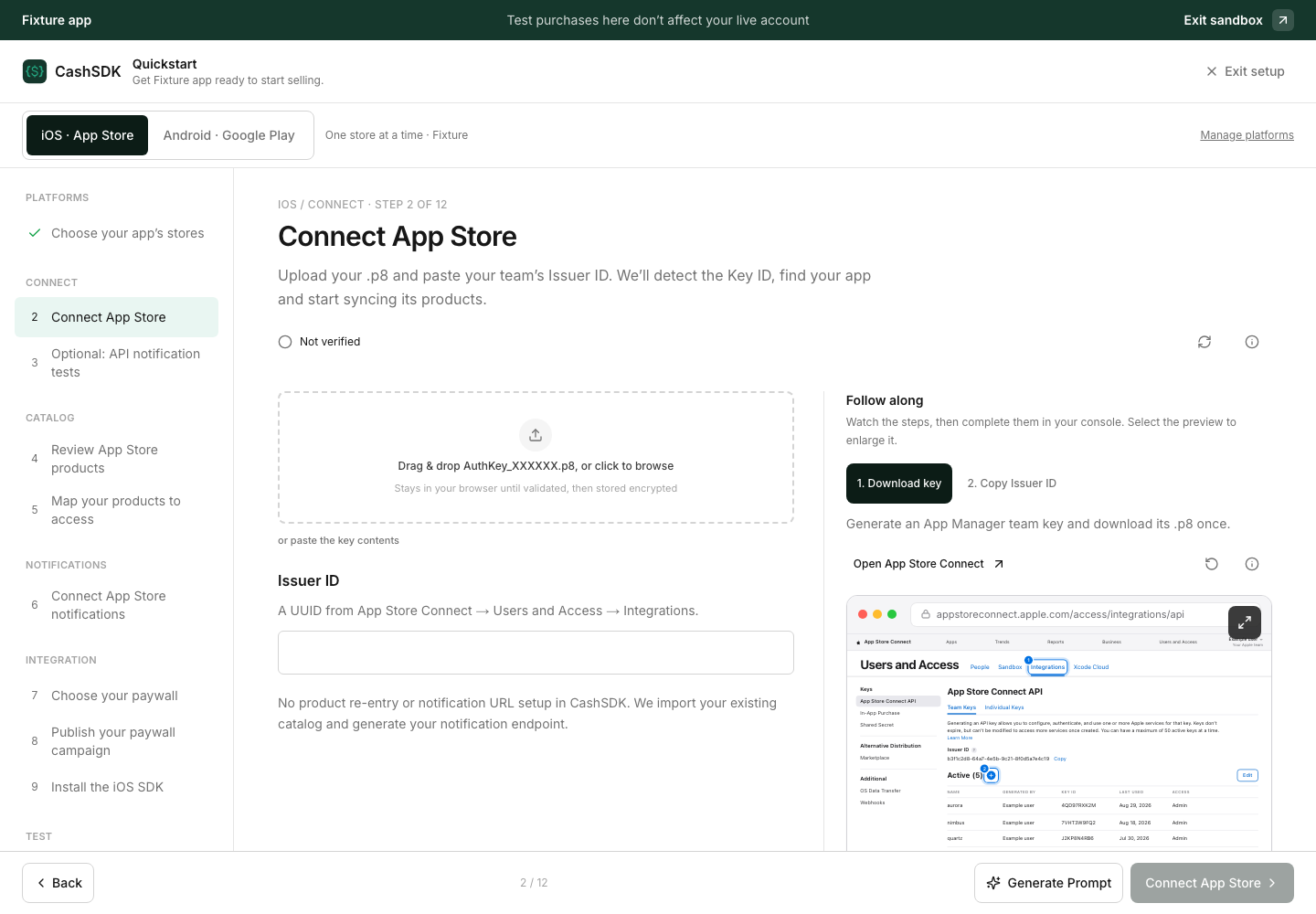
Apple documents the separate In-App Purchase key. Do not confuse it with the team API key or expect a local StoreKit configuration to prove delivery of real App Store server notifications.
Finish the selected platform#
These step IDs are available in either platform path unless marked otherwise.
| Step ID | Action and evidence |
|---|---|
paywall | Choose CashSDK paywall or My app’s own paywall, then Save paywall mode. This is shared across the app, not one setting per store. |
campaign | For CashSDK-hosted paywalls, publish an active campaign in a placement. Omitted when the app renders its own paywall. |
sdk | Install and configure the selected platform’s SDK. Identify the app user using a server-issued user token and wire purchase/restore. Only the publishable key belongs in the build. |
play-build | Android only: optionally dry-run or upload a signed .aab to internal testing. This needs the additional Release to testing tracks permission. A dry run does not commit a release. Google also supports license-tester sideloading; an upload here is not mandatory. |
sandbox | Prepare a tester, purchase, and verify on one page. iOS: Sandbox/TestFlight. Android: Settings → License testing, and a test payment instrument; an internal-track install alone does not prevent real charges. Match the transaction’s store, user and product, then verify access/credits. App-wide history is not proof both stores work. |
asc-assn-production-test | iOS only: explicitly request a Production test notification. This does not publish the app or charge a customer. Without an In-App Purchase key, the check requires a real signed Production notification; Sandbox delivery does not satisfy it. |
launch | Review the selected store’s remaining checks and, on iOS, Apple’s release/review state. Sandbox completion is not approval. A dual-store app offers the other store here. Nothing publishes automatically. |
See Google’s license-testing instructions and Billing integration testing.
Follow a setup warning directly#
Old links still work. They open the grouped task, selecting the relevant guide scene where available. Agents may keep existing bookmarks:
| Legacy step IDs | Current task |
|---|---|
asc-file, asc-issuer, asc-key, asc-validate | asc |
asc-iap-file, asc-iap-id | asc-iap |
asc-app | asc-catalog |
asc-assn-production, asc-assn-test | asc-assn |
play, play-api, play-account, play-cloud-permissions, play-key, play-package | play-upload |
play-invite, play-app, play-permissions, play-financial, play-orders, play-save | play-validate |
play-rtdn-test | play-rtdn |
test-account, purchase | sandbox |
asc-release | launch |
Every row in Finish your store setup, including Done rows, opens its matching Quickstart destination. These are internal same-tab links, not direct console jumps.
| Diagnostic | Platform and step |
|---|---|
| Connect your Google Play service account | Android / play |
| Google rejected your service account | Android / play-validate |
| Refunds won’t revoke access | Android / play-financial |
| App Store Connect key connected | iOS / asc |
| App is live on the App Store | iOS / asc-release |
| Products approved | iOS / asc-catalog |
| App Store notifications arriving | iOS / asc-assn-test |
| Play notifications arriving | Android / play-rtdn-test |
Re-check iOS notifications and Re-check Android notifications open their test steps. Opening a link does not send a notification; explicitly start the test there.
Instructions for coding agents#
Generate Prompt, beside Next, opens a dialog containing the selected platform and
current task. The default is OAuth/browser sign-in, with no token embedded or issued.
The prompt tells the agent to reuse or add the remote MCP connection, let you sign in,
select the workspace and app, review permissions, and approve. Then it must call
get_setup_checklist for that app. A login success screen alone is not verification.
OAuth can allow more actions than a setup token; restrict consent to this app and
approve only the permissions you need. The agent must not approve consent for you.
If your client cannot use OAuth, expand Client doesn’t support browser sign-in? and explicitly choose Generate token fallback. This creates a 24-hour app-scoped setup token and revokes the previous setup token. Reopening a cached prompt does not rotate it. Never share or commit that prompt. Escape closes the dialog and restores focus.
See MCP connection instructions, including browser login for Codex and Claude Code.
Ask one question at a time, act only on the requested platform/step, and read the live checklist before making changes. Do not run the complete integration merely because the broader reference runbook appears below the current-step instruction. Obtain confirmation for product-tier choices; never remove the other platform to clear checks.
This page is available as server-rendered text and is automatically included in /llms.txt and /llms-full.txt. Step IDs, console labels, inputs, permission requirements and verification criteria are text, not screenshot-only instructions. Do not scrape the authenticated dashboard for credentials.
Console guidance reviewed against the supplied September 15, 2026 Google captures and official Google/Apple documentation. Account-specific layouts and permission propagation can vary. Production readiness requires successful live account validation, notification delivery and an end-to-end purchase on each selected platform.